
Choose a math scenario
Project Math requires Tirtle Plus. Each session contains four puzzles about one project scenario.
- Open Games and choose Project Math.
- Start the current session, or choose Practice below it to browse Topics.
- Choose a skill, then select a scenario. Its card shows whether it’s new, in progress or complete.
- Read the project context and the facts for the first puzzle before entering an answer.
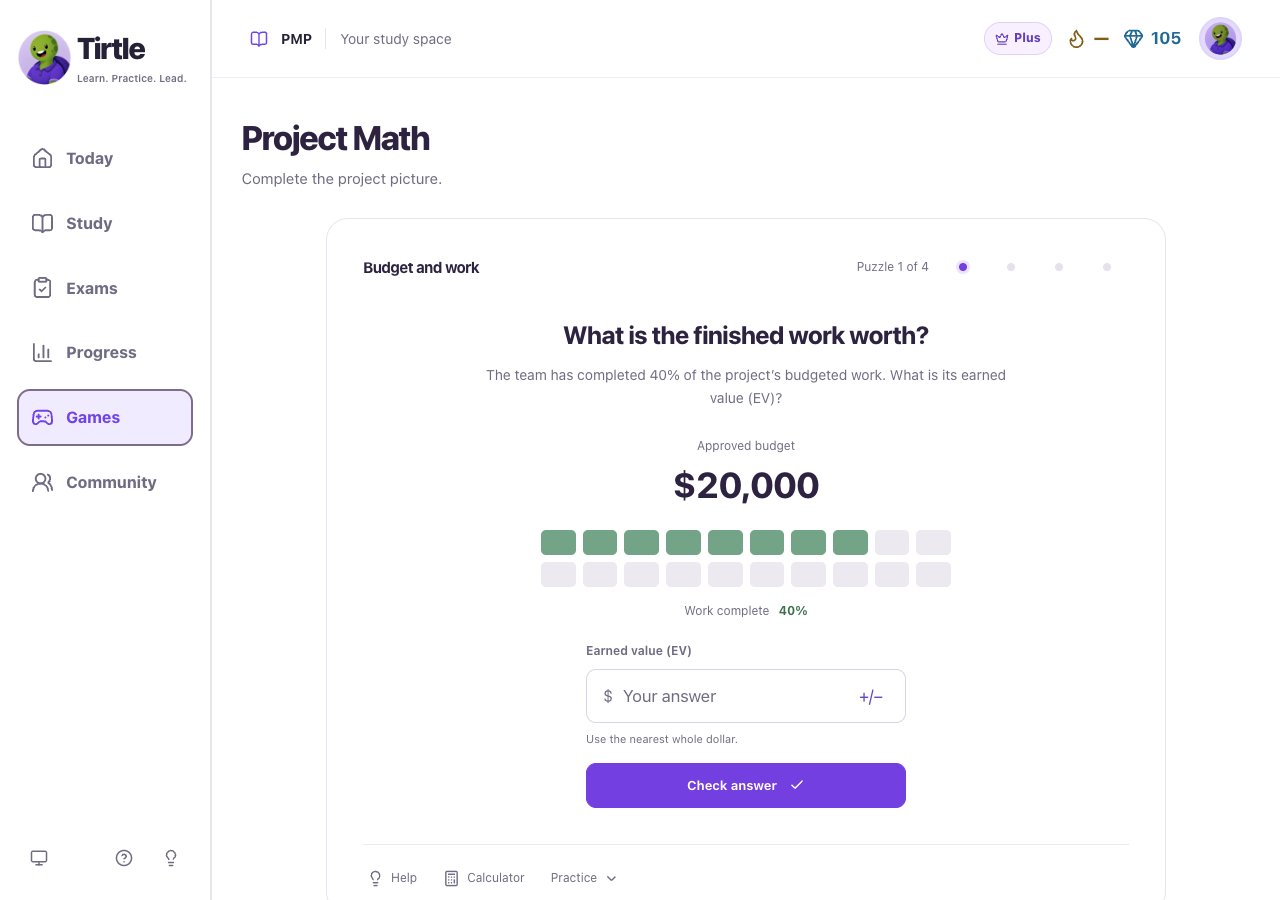
Calculate first, then explain the result
A correct calculation is only part of the puzzle. You also need to interpret it before moving on. The dots at the top let you return to another puzzle in the same session.
- Read the question, the fact labels and the answer format. Enter the number using the unit and rounding shown beneath the field.
- Use the +/− control when you need to change the sign, then choose Check answer.
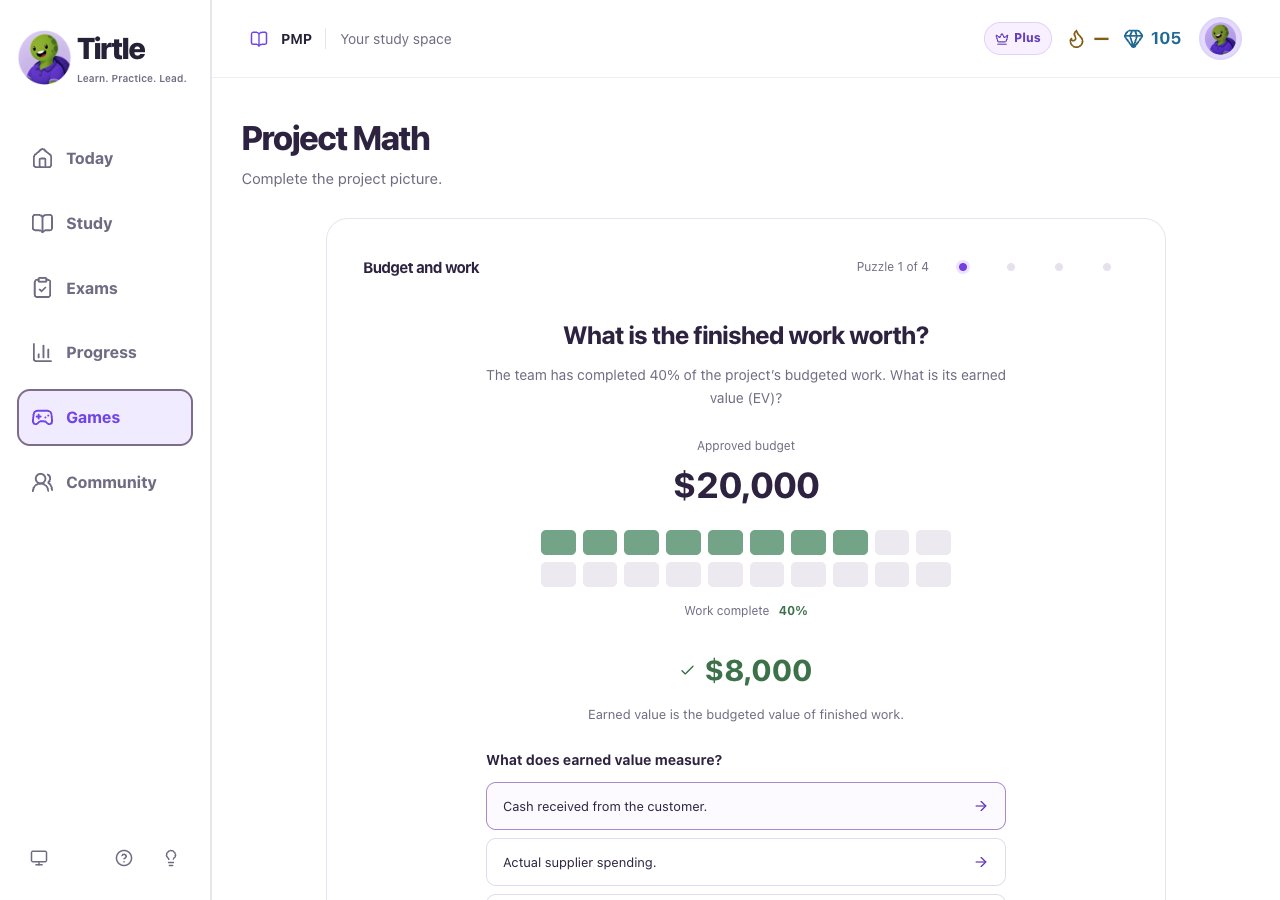
- If the answer needs work, recheck the facts and enter another number. When it’s correct, read the explanation.
- Answer the meaning question that appears below the calculation. Choose the interpretation that fits the project.
- Once the number and its meaning are correct, choose Next puzzle. After all four, choose See results.
Use formula help and the calculator
Opening formula help before answering records help for that calculation. Retries also stay in your history. You can still finish, learn the meaning and save the game win.
- Choose Help to see the formula for the current calculation. Open Worked answer if you want the explanation.
- Choose Calculator to work through the arithmetic. When a result is ready and you’re still answering, choose Use answer to put it in the answer field.
- Return to the question and choose Check answer. Using the calculator doesn’t submit an answer for you.
Finish the session and revisit a skill
Math progress distinguishes independent work from work with help and later revisits. It asks you to revisit after 24 hours. These skill records stay on this browser and aren’t an exam readiness score. Saving a game win doesn’t turn every earlier attempt into an account record.
- On A clearer project picture, review the four results.
- Choose Save only to save the account win, or Share this win to save it and open Community. Posting there remains your choice.
- Choose Keep practicing for another scenario in the topic, or Practice again and Start fresh for a new attempt.
- Open Practice, then Your progress to see the math skills you’ve practised and which are ready to revisit.
Resume carefully and understand a restart
Restart session keeps earlier help and retries noted. A fresh attempt starts a new round. Each scenario’s first saved account win stays in place when you replay it.
- Return in the same browser and account to continue your current scenario.
- For an unfinished session, open Practice and choose Restart session. Confirm to begin again, or choose Keep my place.
- For a completed session, Practice again offers a fresh attempt. Your earlier math history stays.
- If an account win can’t save, use Retry saving win. Keep the page open if it says your local progress couldn’t save.