
Pick your learning moment
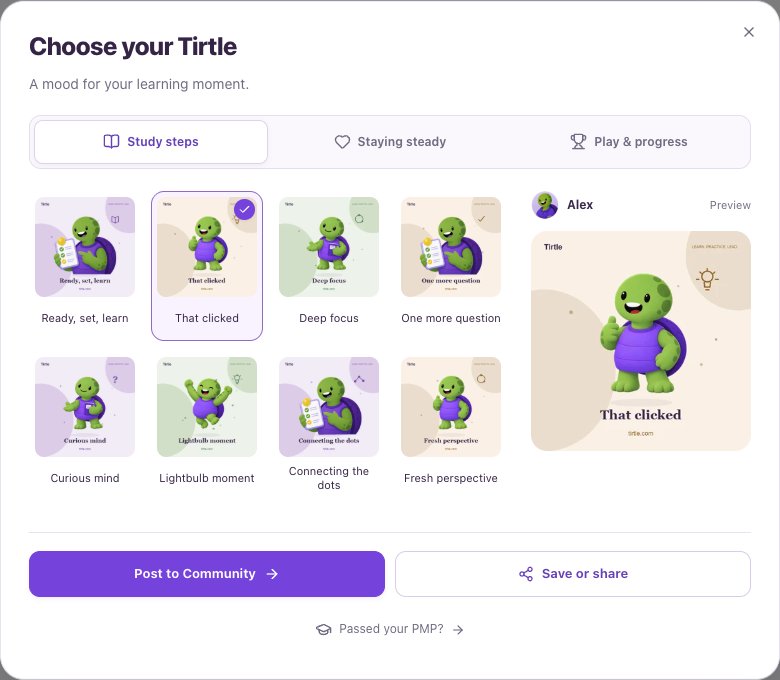
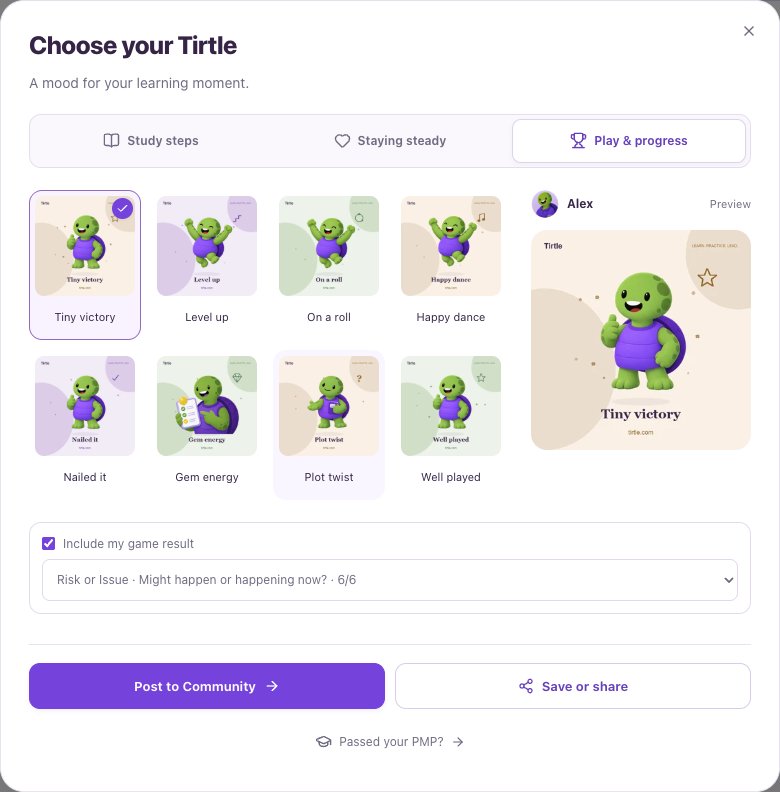
There are 24 curated moods. You do not need to write a message or upload a picture. A preview stays private until you post.
- After joining Community, choose Share a win.
- Choose Study steps, Staying steady or Play & progress.
- Select one of the Tirtle moods and check the preview.
- If you want to include a game result, turn on Include my game result and choose a saved win.
- Choose Post to Community when the preview is ready.
Save or share outside Tirtle
Opening a share menu does not confirm that anything was published elsewhere. A downloaded mood is separate from a Community post. Other people may keep copies of images you share outside Tirtle.
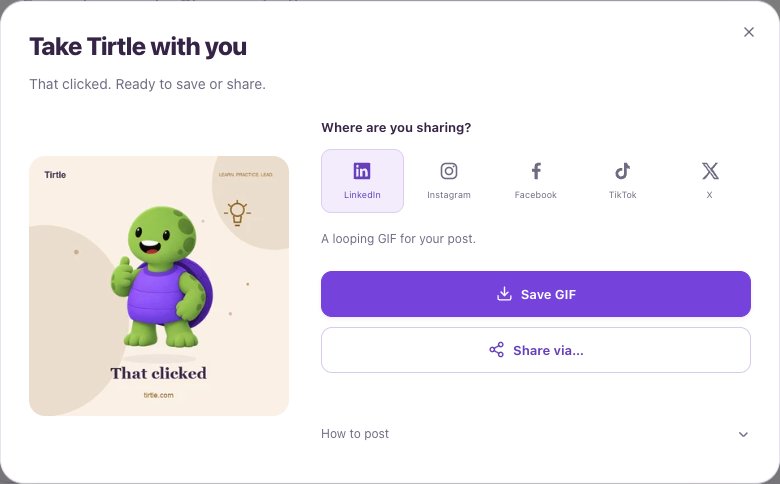
- Choose Save or share in the mood composer, or use the share control on your own post.
- Choose the destination. The mood dialog offers a GIF or short silent video suited to it; a celebration card offers its own image choices.
- Choose Save GIF or Save video for a mood, or save the card image. Use Share via… if your device supports the offered share menu.
- Finish the post in your chosen app.
Change your mind
Close the composer to leave without posting. If already posted, find it under My posts and use Remove my post. Removing it in Tirtle does not remove copies downloaded or shared elsewhere.