Open the instructions for your device
Use the guide below for the browser you’re using. You can also find Add to Home Screen in Profile, under Account.
Open this Help page on your phone or tablet to see the steps for that device.
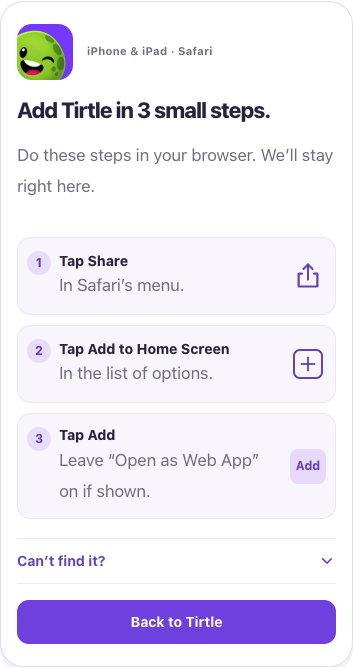
On iPhone or iPad
Apple asks you to confirm these steps. Opening Tirtle’s instructions does not install the shortcut by itself.
- Open Tirtle in Safari. If you opened a link inside another app, copy its address into Safari first.
- Open the browser menu if needed, then tap Share.
- Choose Add to Home Screen. Scroll through the actions if needed, or use Edit Actions to find it.
- Keep Open as Web App on if it appears, then tap Add.
On Android
Menu wording and install availability vary by browser. If you already added Tirtle, look for the Tirtle icon on your home screen or in your app drawer.
- Open Tirtle in Chrome.
- Open the three-dot browser menu and choose Add to Home screen or Install app.
- Confirm Add or Install in the browser’s prompt.
If you dismiss the suggestion
Tirtle hides this browser’s home screen suggestion for 30 days or until a site update, whichever comes first. Clearing cookies or other browser storage, or blocking storage, can make it appear sooner. This does not turn on analytics or optional tracking.
You can still return to this article or Profile and choose Add to Home Screen whenever you want.
Same study space, easier to reach
Use your usual sign-in method to find your saved progress. The shortcut does not create or merge an account. You still need an internet connection to load and save your study activity.
In the sandbox, the shortcut is named Tirtle Test. It opens the sandbox and its separate test account.