
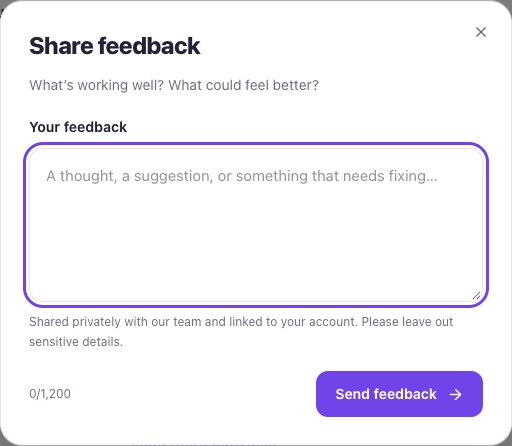
Share feedback
Feedback is private to the Tirtle team and linked to your account. The form allows up to 1,200 characters. Leave out sensitive project details, passwords and sign-in codes.
- Choose the lightbulb Share feedback icon in the sidebar. On mobile, open More to find it.
- Describe what happened and what you expected. Add the page or activity name if useful.
- Choose Send feedback and wait for Thanks for sharing.
- If the result is uncertain, use Retry this feedback to check the same note.
Flag a question that needs another look
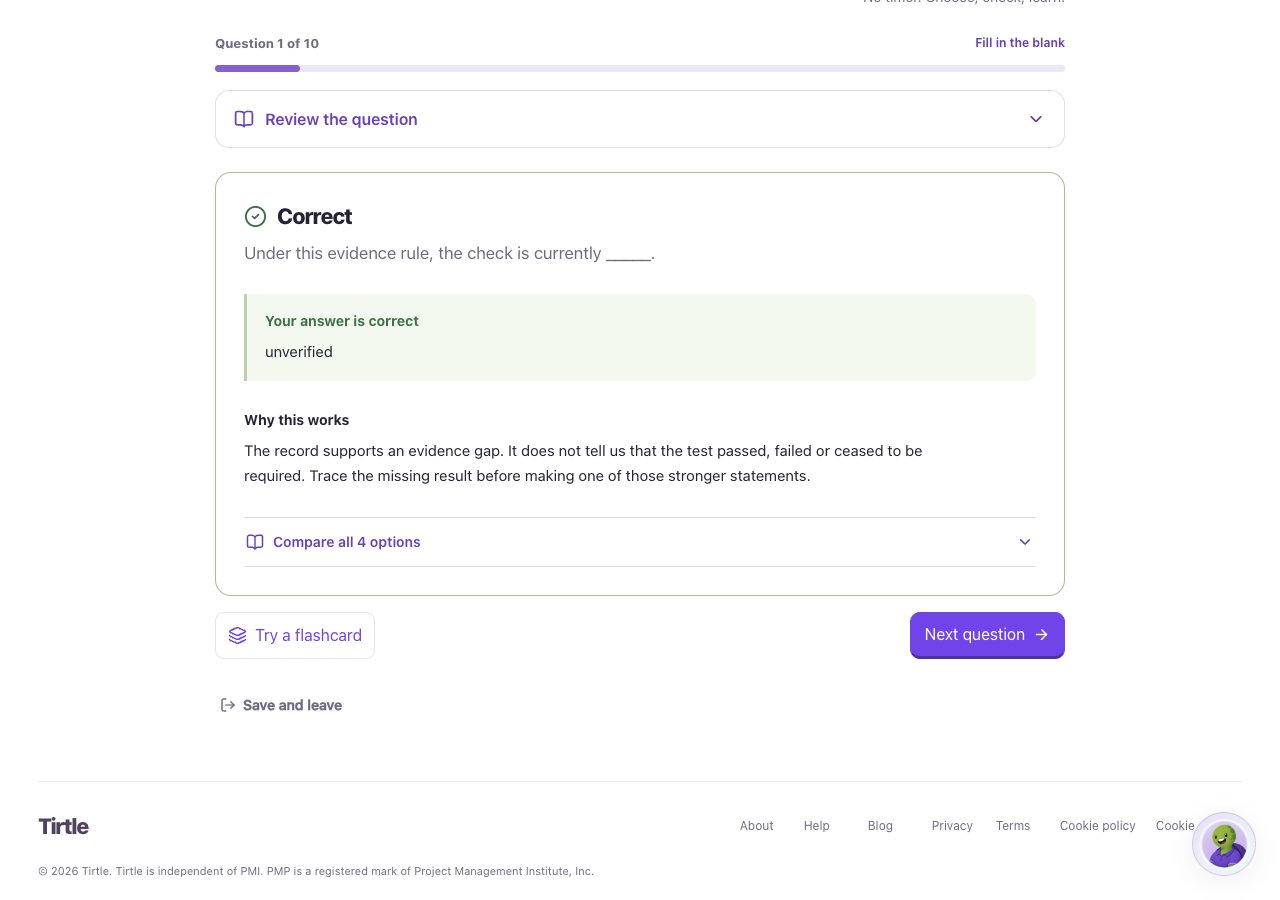
For a question or explanation issue, mention the activity and the wording that seems unclear in Share feedback. Describe the concern without including personal information.
Some earlier saved question reviews also offer Report a question. When that control is present, choose the issue category, add a little detail and select Send report. The report carries that question’s reference.
Get help with an account problem
If you cannot sign in or use the feedback form, email hello@tirtle.com. Include your sign-in method, browser, what you were doing and the visible error. A screenshot can help after you remove private details.
A saved report confirms receipt for review. It does not promise a particular fix or response time.