
Start with the message on screen
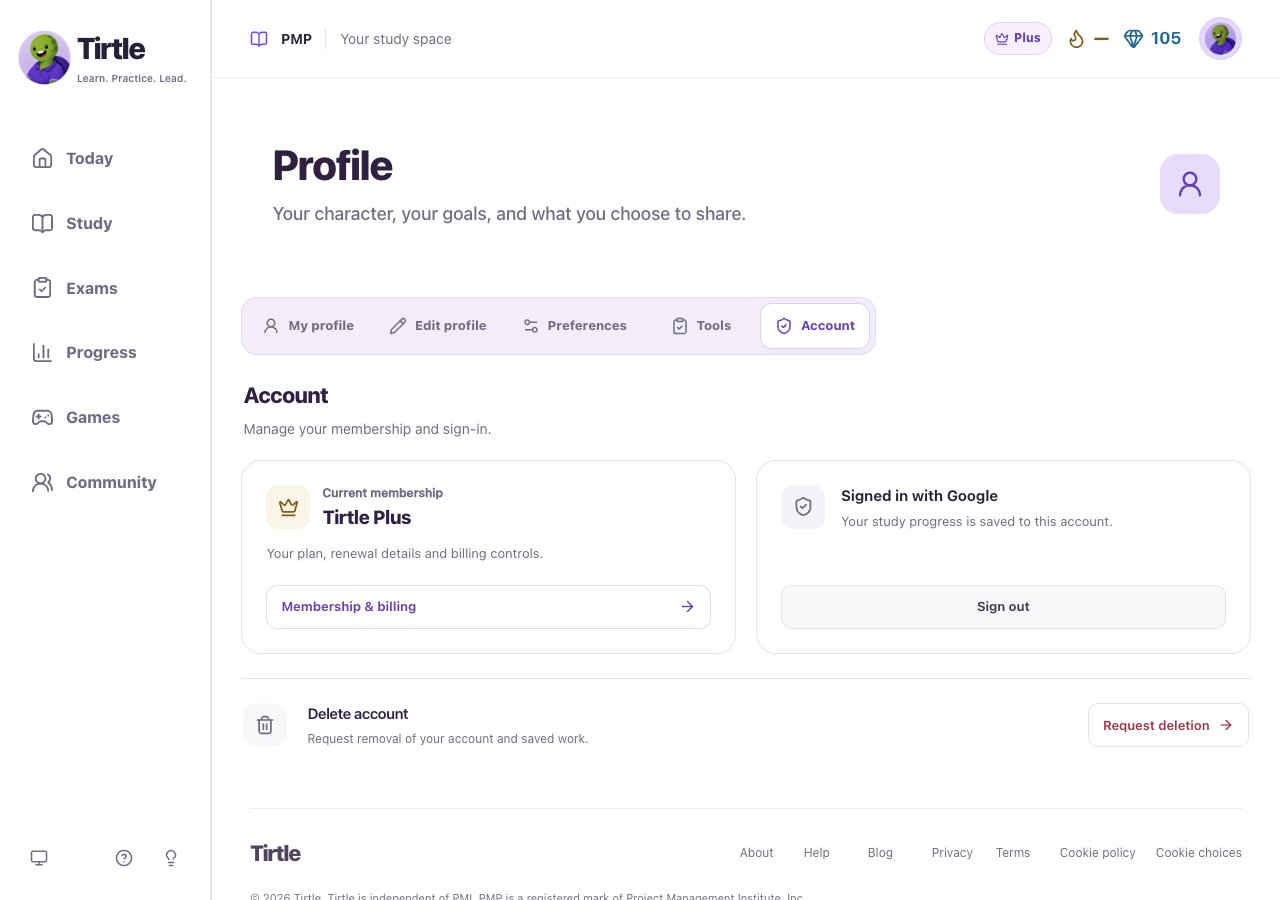
Tirtle needs a connection to load and save your study space. If a save fails, don’t assume that the latest action was recorded. Read the message, check your connection, and retry the action when prompted.
- If sign-in has expired, return through the same sign-in method and account.
- If progress changed in another tab, use one active study tab and retry after the refreshed progress appears.
- Wait for an action to finish before clicking it again.
- For profile and application edits, use the save button and wait for confirmation.
Keep an unsaved draft open
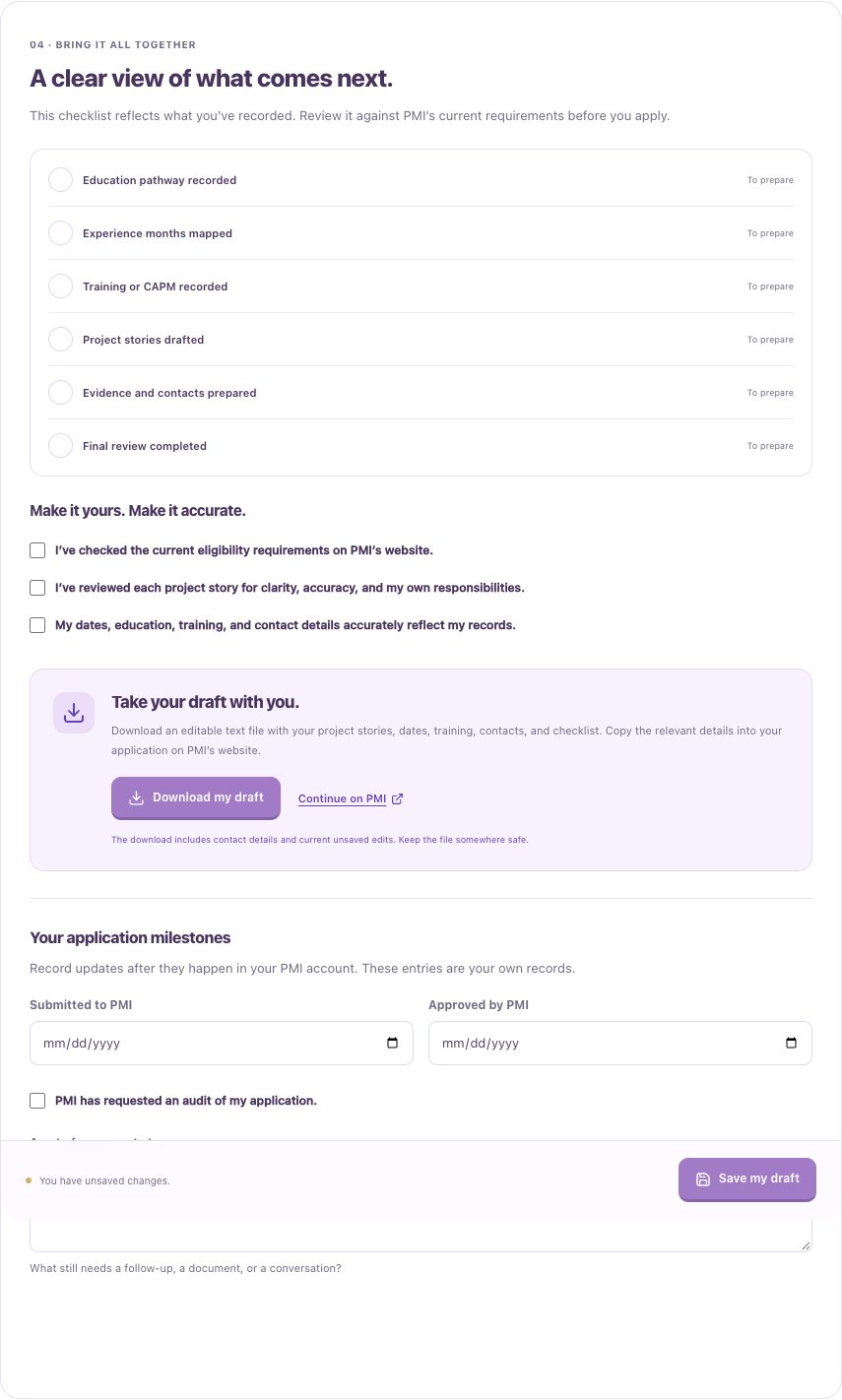
If an application draft hasn’t saved, keep the workspace open while you retry. Download my draft can preserve your current edits in a text file before you reload or leave. That file may include personal and contact information.
If you’re still stuck
Email hello@tirtle.com with what you were doing, the error message, your sign-in method, and the browser you’re using. A screenshot can help if it doesn’t show private information.
Never send your password, sign-in code, or an entire application draft just to report a problem.