Find a saved step
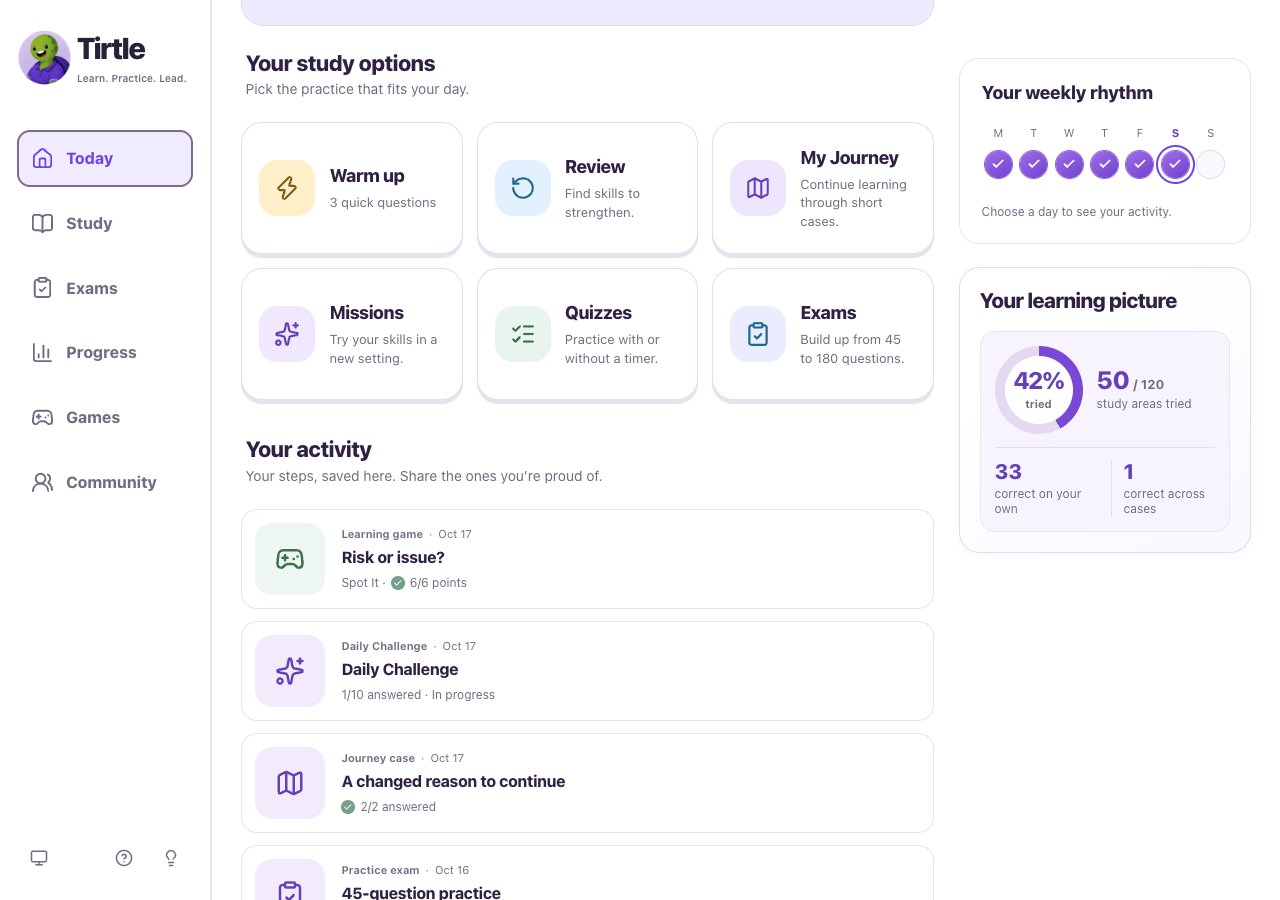
Your activity wall is private. An empty list fills as you answer questions and finish activities. Use the same sign-in method and account to return to it.
- Open Today and scroll to Your activity.
- Open an item to continue its activity or view a completed result. A game entry can take you back to Games.
- Choose Load more activities to see earlier entries, or Show fewer activities to shorten the list.
Keep an item handy or share a summary
Posting from this dialog joins Community with your saved Profile name if needed. Only the previewed summary is shared; the full activity wall stays private. Joining here does not turn on Gem sharing or leaderboard participation.
Pinning does not publish an item. To remove a shared post, use My posts in Community. The original study record stays saved.
- Use Pin to top on an eligible activity you want to keep handy. You can pin up to three; unpin one to make room.
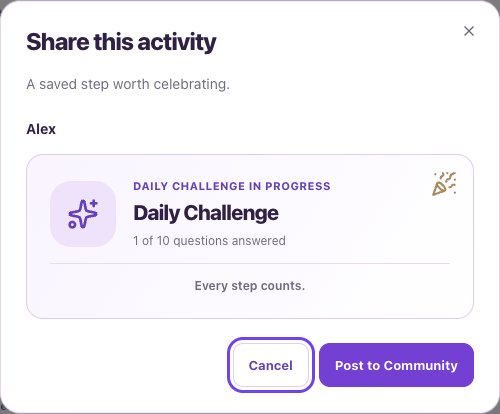
- Choose Share on an eligible activity and read the Share this activity preview.
- Choose Post to Community, or Join & post to Community if you have not joined yet.
- Wait for Shared to Community. You can open an already-shared item’s Community control to view its post.