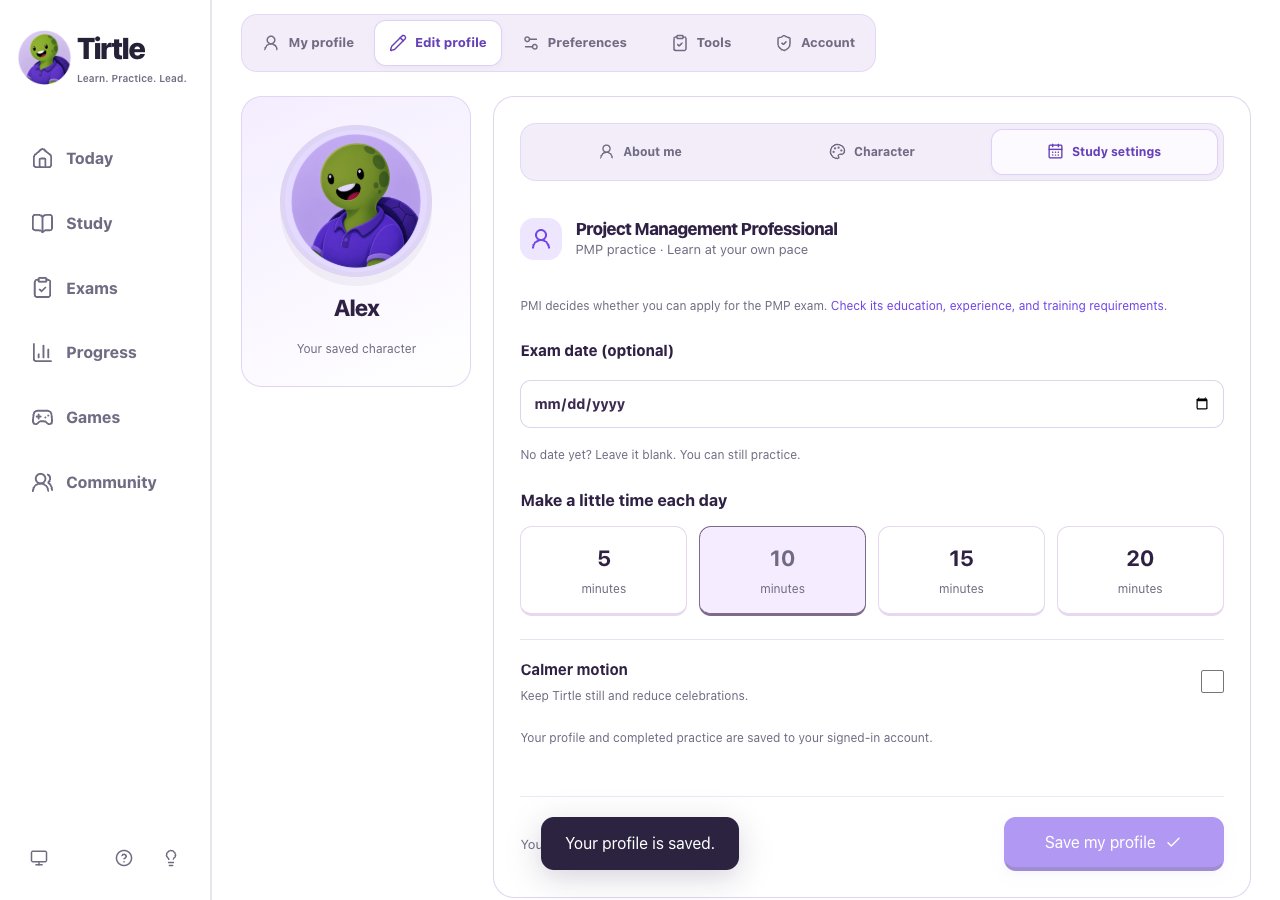
Edit your saved profile
Your saved name appears in Community if you join. Optional profile details stay private unless you turn on their sharing choice. A preview is not saved until you use Save my profile.
- Open Profile, then Edit profile.
- In About me, choose what Tirtle should call you and add any optional details you want to keep.
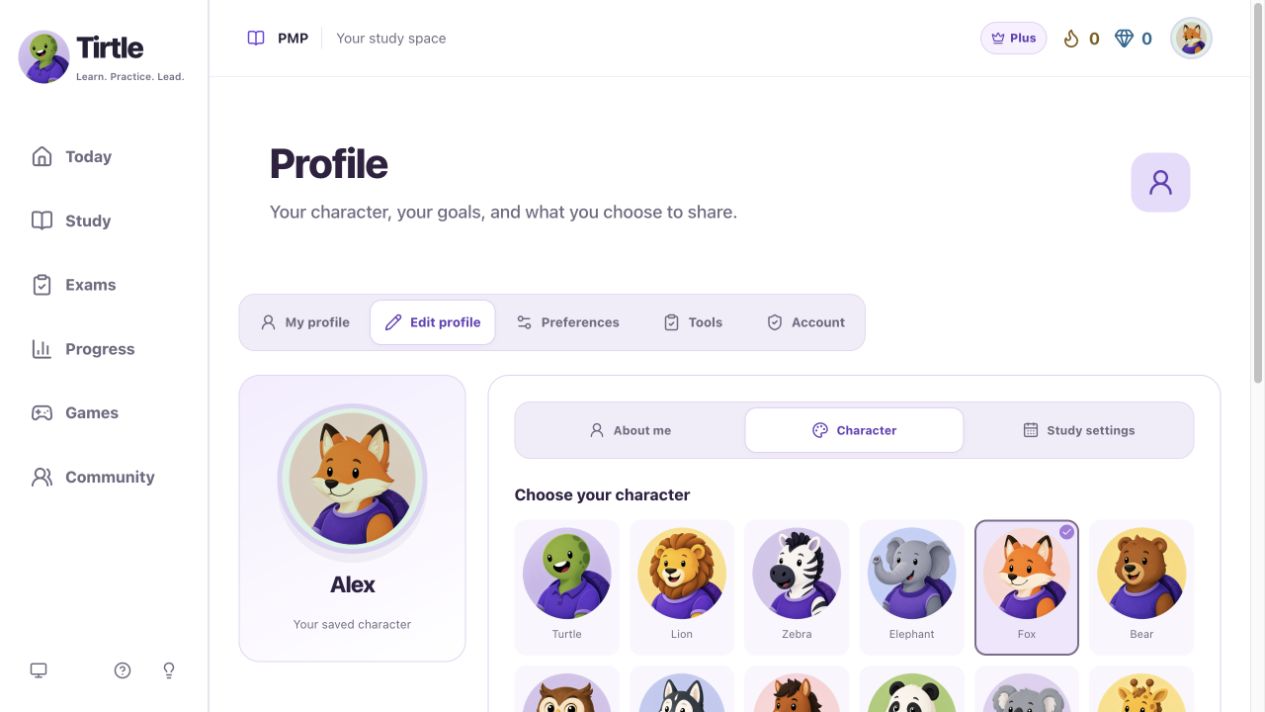
- In Character, choose your character, backdrop and an earned badge.
- Choose Save my profile and wait for the saved confirmation.
Choose Light, System or Dark
Appearance changes immediately and saves on this device. It does not need Save my profile. Each browser or device keeps its own choice.
- Open Profile > Preferences and find Appearance, or use the desktop icon at the bottom of the sidebar.
- Choose Light, System or Dark. System follows your device’s appearance.
- On mobile, open More to find the Appearance icon.

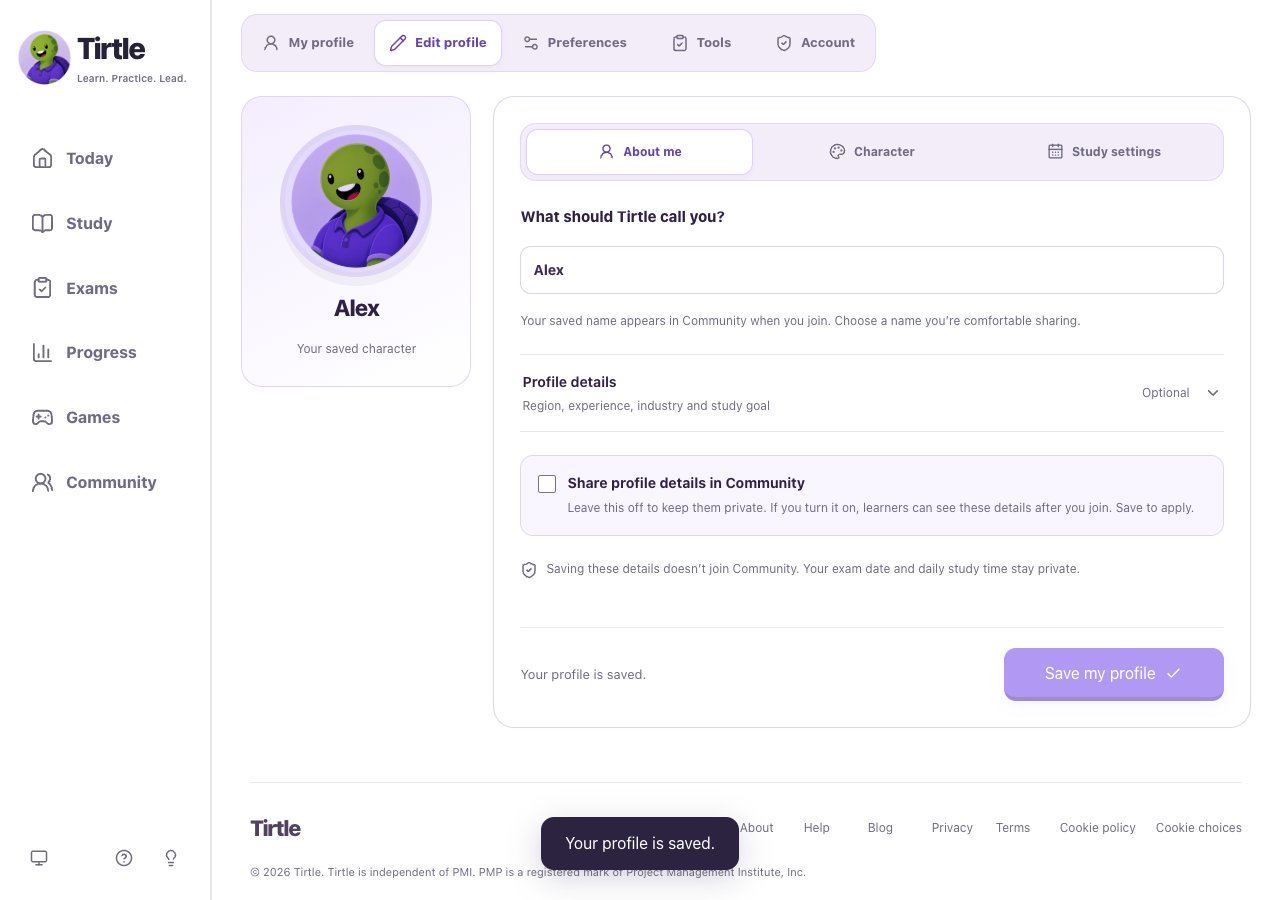
Set a study goal
You can leave the exam date blank. A planning target is not a guarantee of curriculum coverage or exam readiness.
- Open Edit profile > Study settings.
- Set an optional exam date and a daily time target that fits your routine.
- Choose Save my profile.
Reduce motion
This keeps Tirtle still and reduces celebrations. You can continue studying and earning rewards.
- In Edit profile > Study settings, turn on Calmer motion.
- Choose Save my profile to keep the preference.