
Show Tirtle during practice
The preference saves to your account. Study Buddy appears with supported learning activity, not as a general chat on every page. If the setting is unavailable, use the guidance on screen and try again later.
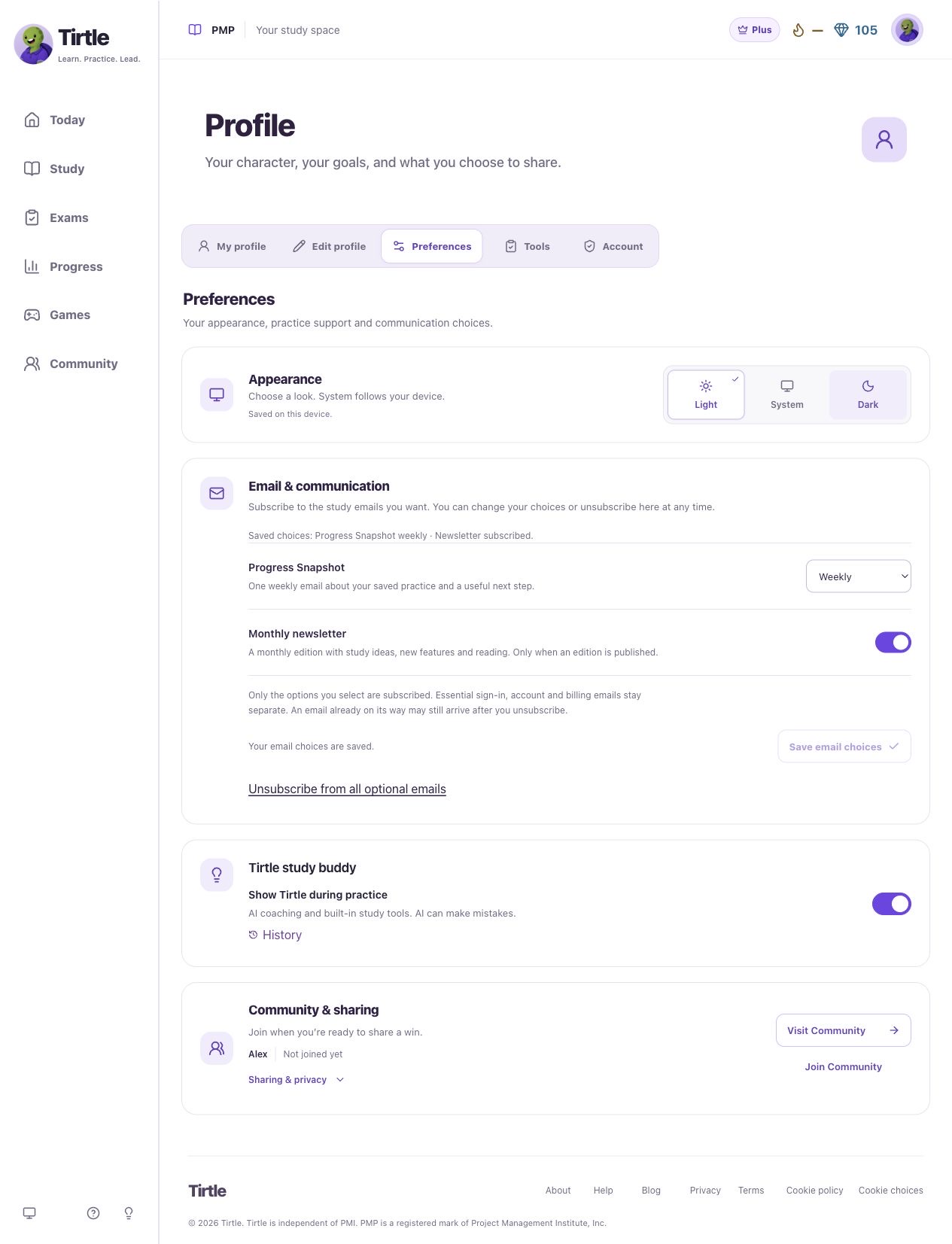
- With Plus, open Profile > Preferences.
- Find Tirtle study buddy and turn on Show Tirtle during practice.
- Open a practice question or saved result, then choose Open Tirtle study buddy.
Ask about the current decision
Tirtle is an AI study buddy. AI can make mistakes, so check important details. Live replies depend on availability and your account allowance; built-in help can be available separately.
- Choose one of the suggested actions or type a short question in Message Tirtle.
- Before answering, ask for help thinking through the situation. After submitting, ask for an explanation or Explain another way.
- Use Talk it through or Tell me more when offered, and compare the reply with the question’s explanation.
- Open Coaching to check the support available to your account.
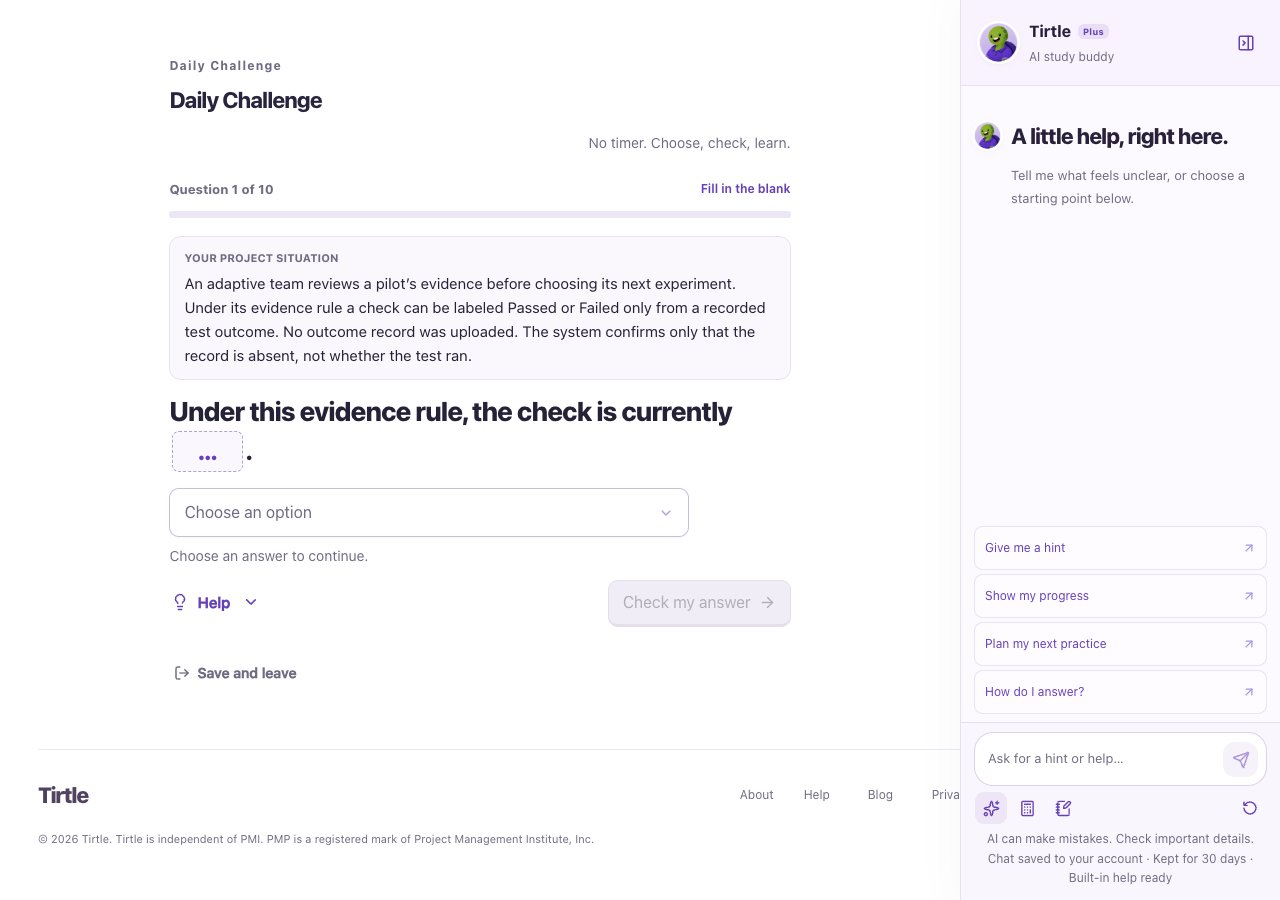
During independent or timed work
Coaching that could reveal answers is restricted while you answer independent activities, timed practice or exams. Calculator and Scratchpad can remain available. Submit first, then review together.
Manage the conversation
Starting fresh keeps your practice answers, learning history and coaching allowance. A request already sent may still use allowance even if you stop showing it. Chat is saved to your account for the retention period shown in the pane. Leave passwords and confidential material out of messages.
- Use Collapse Tirtle pane when you want more room for the question.
- Choose New conversation > Start fresh to clear the current chat.
- Use Stop showing reply to stop displaying an in-progress answer if needed.